Before showing you anything, the app asks you four things. It is not paperwork: these four decide how everything else behaves.
Country — decides how dates and numbers are written, which chat app it suggests, and what kind of payment QR code it can build.
Currency — suggested from the country.
Language — translates the app, and also translates the documents your customers will receive.
Your business name — what will appear at the top of documents.
⚠️ Country and currency are chosen once
Take an extra thirty seconds on these two. They stay fixed for the life of the app: you cannot change them later.
The reason is that the documents you make are written in that currency, and changing it later does not rewrite them. You would end up with an archive holding two different currencies with no way to add them up: a yearly total that mixes euros and dong is not a wrong number, it is a number that means nothing.
If you got it wrong and notice right away — before making any documents — the way out is to reinstall the app and start over.
What it does not do
It does not ask you to sign up. No account, no email, no password: the app is yours and the data stays on the phone.
It does not convert anything. There is no automatic exchange between currencies, and there will not be: applying today's rate to a receipt from six months ago would change a document already sent to the customer.
Your business details
Where to find it. In Home, the shop icon at the top right.
In Home, the shop icon at the top right.
This is where everything that goes at the top of every document you send lives: logo, name, contacts, address, tax details and bank details. It is worth filling in properly once.
The logo
Any image from your phone's gallery works: a photo, a downloaded file, a screenshot. No particular format is needed.
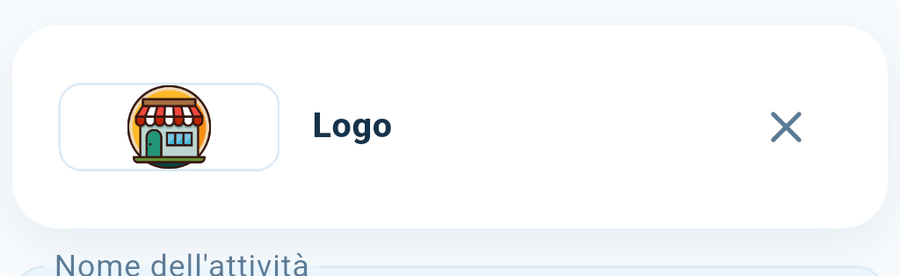
The logo box, at the top of the page. Tap it to choose one; the X removes it.
The space is a horizontal rectangle, about two and a half times as wide as it is tall — the shape of a sign, not a square. When you upload one, the app shows you that box and lets you move the image inside it: whatever is inside is what ends up on the document.
What works well:
Text with your business name is the most common case, and in a horizontal rectangle it comes out large and readable.
A crest or a symbol works just as well: it stays centred, with white space at the sides.
A very tall, narrow image is the one that comes out worst: inside a wide rectangle it shrinks down small.
If you do not have a logo you can leave it out: the document will show your business name written out instead, and that is perfectly fine.
Bank details
They serve two purposes: appearing on the document, and building the payment QR code. If the QR code is not showing up, it is almost always because something here is missing.
Saving
A bar appears at the bottom of the screen as soon as you change something, and stays until you save. If you try to leave with unsaved changes, the app asks you first.
The app's settings are a different thing
Inside My shop, the gear icon at the top right opens Settings: language, backup, full version, anonymous data.
The gear icon, at the top right inside "My shop".
The difference is simple: this screen holds what the customer reads on your documents; that other one holds what concerns only you and your phone.
What it does not do
It does not change documents already made. Those stay as you sent them: a document is a snapshot of that moment.
Finding your way around
There are four buttons at the bottom, and they never change: Home, Customers, Stock, Documents. From anywhere in the app, one of those four takes you back to somewhere you know.
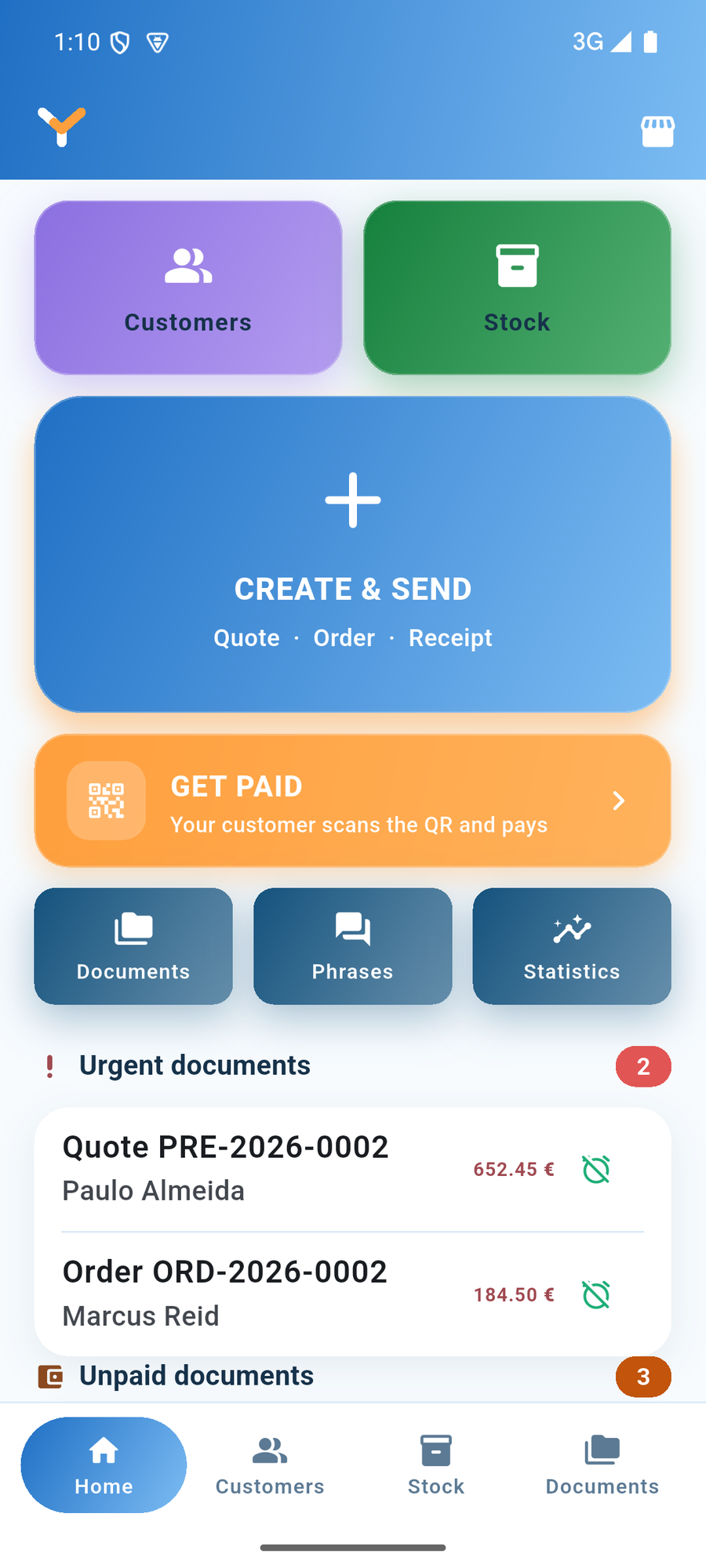
The Home screen.
The Home screen is not a menu: it is what you need to do today.
Create & send is the big button in the middle. Quotes, orders and receipts all start there. It is big because you will use it twenty times a day.
Get paid opens the QR code: your customer scans it and pays.
Urgent documents and Unpaid documents are two short lists at the bottom. They appear on their own when something is waiting for you, and disappear when nothing is.
If there is no list at the bottom of the Home screen, nothing is broken: it means you have nothing outstanding.
There is no hidden menu. Everything you can do is behind one of those four buttons or inside the card you are looking at: if you are hunting for something, it is not in a side menu, because there is not one.
Customers
Adding a customer
From the customer list, the button at the top opens the empty card.
Only the name is needed
Everything else is optional. You can save a customer with just a name and fill in the rest when you know it: that is what actually happens when someone messages you for the first time and you do not even know where they live yet.
The fields you find:
Name — the only one that is needed.
Phone — if it is there, you call from the card with a tap.
Chat — the contact on the chat app, written as zalo:username or whatsapp:+1.... If it is there, you message from the card with a tap.
Email — used to send them documents by mail.
Address, postcode, city, area and country — end up on the documents you send them.
Private notes — see below.
Open balance — what they already owed before. It has its own page: Open balances.
Private notes stay yours
What you write in the notes never appears anywhere on the documents the customer receives: not on the sheet, not in the message, not in the PDF. You can write "always haggles on price" or "only call in the afternoon" without any risk.
What it does not do
It does not check for duplicates. If you enter the same person twice, the app trusts you: they are two different customers, with two separate histories.
There is no point entering the name twice. If you already have a customer and sell to them again, open their card and make a new document from there: that way the open balance and history stay together.
Customers
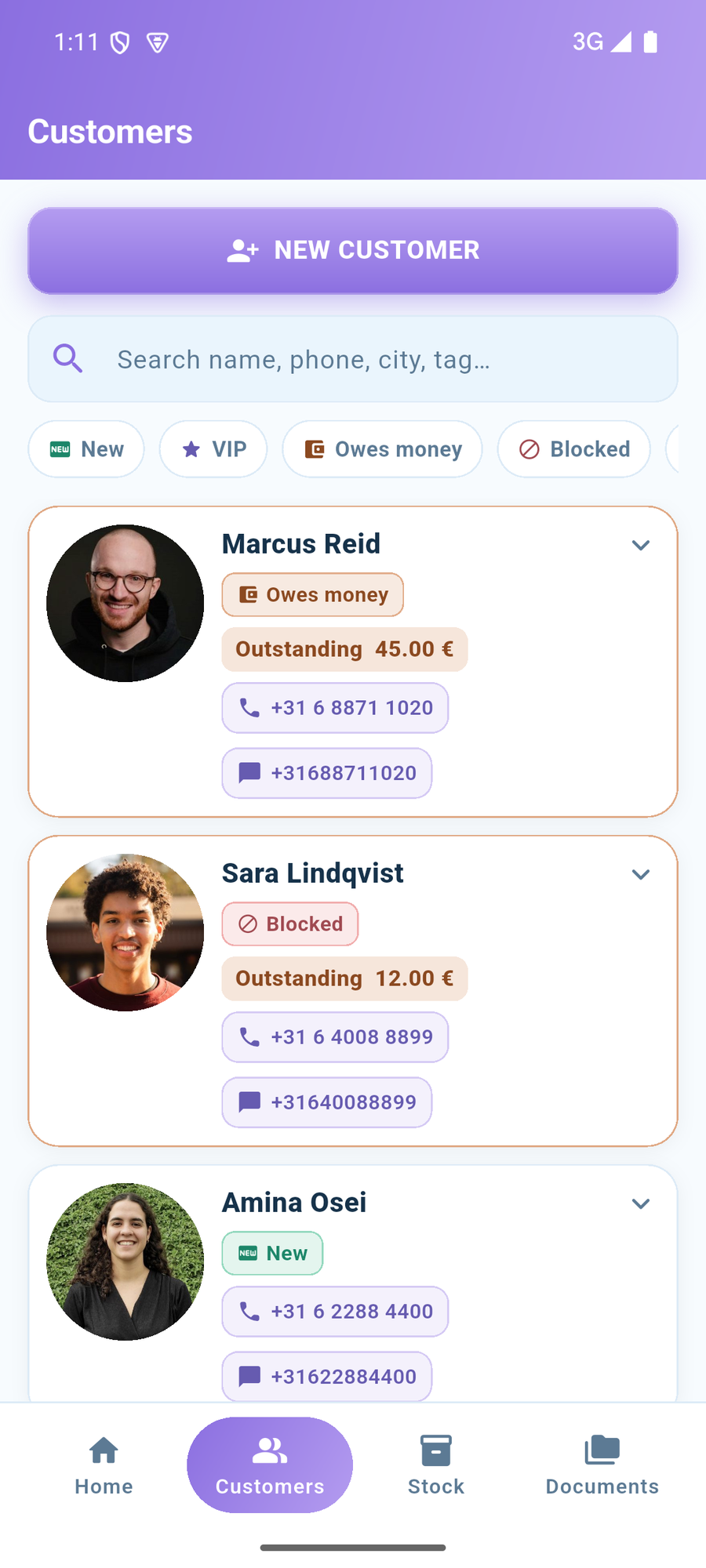
The Customers button at the bottom opens the list of everyone you have ever sold something to, with the most recent at the top.
The customer list.
Searching
The field at the top searches as you type, and it does not search only the name: try the phone number, the city, whatever you remember. If you are thinking "that lady from Bologna" and not the name, type Bologna.
Filtering by label
Below the search field are the labels. Tap one and only customers who have it remain: one tap turns it on, another turns it off. You can turn on more than one.
Search and filters work together: if you search Rossi with the VIP filter on, you see only the Rossis who are also VIP.
What it does not do
It is not your phone's address book. The customers are the ones you have entered here yourself: the app does not read your phone contacts and does not import them.
It does not delete anyone on its own. A customer who has not bought anything in two years stays right where they are until you remove them.
A customer's card
Tap a customer in the list and the card opens right there, without changing screen. Tap it again and it closes.
Calling and messaging
If you have entered the phone number and the chat contact, you see them as two buttons: one tap calls, one tap opens the chat. You do not have to copy anything from anywhere.
What you can do from here
New document — starts already addressed to them.
The pencil — opens the card to fix the details.
Copy text — puts their details on the clipboard, to paste them wherever you need.
Image — the business card to send them. It has its own page: The business card.
If they have unpaid documents, the top of the card shows what they owe you: tap it to see which ones.
What it does not do
Calling and messaging hand off to your phone's apps. YATAIO opens the phone or the chat app and steps aside: it does not send anything on your behalf, and it does not read your conversations.
Labels
Every customer can have one or more labels. They help you find people quickly: in the list they turn into filters.
There are five, and these are them:
New — you sold to them recently.
VIP — the one you do not want to keep waiting.
Debtor — owes you money.
Blocked — you have decided not to work with them any more.
Wholesaler — buys in quantity, usually at a different price.
What it does not do
You cannot add more. These five are all there are.
"Blocked" does not block anything. It is a reminder for you: the app still lets you make a document for a blocked customer.
"Debtor" is not set automatically. The app calculates the open balance, but you set the label — and the two are different things: someone can owe you money without you considering them a bad payer.
Open balances
A customer's open balance is made of two pieces, and they behave differently.
What you write in
On the customer's card there is a field where you put what they owed you before you started using the app. It is there for the day you start: you already have outstanding amounts out there, and they need to be written down somewhere. You can change this whenever you want.
What the app calculates
Below it, the app adds up on its own the documents you made them that are not marked as paid. This number cannot be corrected by hand: to bring it down, mark the document as paid. That is where it comes from.
The total
The two add up, and the sum is what you see at the top of the customer's card. At zero the field is off; as soon as there is something outstanding it turns red.
What it does not do
It does not send reminders. The app tells you who owes you money; who to call and when is up to you.
It does not track partial payments against the starting balance. If a customer gives you a part-payment on an old outstanding amount, you correct the number yourself.
The business card
From a customer's card, Image builds a business card with their details and shows it to you before doing anything else.
The preview is not a nicety: the card is cropped exactly from what you see, so you already know what will arrive on the other end.
From there you can send it in a chat or save it to your phone's gallery, to keep it or send it later.
What it is really for
Passing a contact to someone else without dictating it. An image can be sent in a chat and read on any phone, even an old one, even without the same app.
What it does not do
It is not an address book contact. It is an image: whoever receives it looks at it, they do not save it among their numbers with a tap.
It does not contain the private notes. Those stay yours here too.
Photos and cropping
Customers and items can have a photo. You take it from the gallery or shoot it on the spot.
Cropping
After choosing the photo, the app lets you move and zoom the framing inside a box. What you see in the box is exactly what stays, everywhere: in the list, in the showcase and on the document.
The box for items is wider than it is tall (four to three). The logo box is even wider: see Your business details.
What it does not do
It does not retouch anything. No filters, no colour correction: what you shot is what shows.
It does not touch the original photo. It stays intact in your phone's gallery: the app keeps its own copy.
A customer's documents
From a customer's card you reach every document you have made them, without going through the archive and without searching for their name.
What they have bought
In the customer's card, the document count opens the full list: quotes, orders and receipts, most recent first. A tap on one opens it.
It is how you answer "what did I sell them last time?" while you are talking to them, instead of saying "let me check and I'll get back to you".
What they owe you
If they have unpaid documents, the top of the card shows how much they owe you. Tap it and see which ones, each with its own button to mark it paid.
The total tells you how much; this list tells you which ones — without it, settling an outstanding amount meant going to the archive and tracking down the document by hand.
Linked documents
If a receipt grew out of an order, and that order out of a quote, opening the receipt shows the chain it descends from: the earlier documents are listed in the card, and you open them from there.
So six months from now, looking at a receipt, you know which quote it came from and at what price it was promised.
Pro
Customers in your phone's address book
When a customer calls you, you want to see their name, not a number.
Their details are already written in here: name, phone, email, address. With one tap the app turns it into a contact, and from there you can do two things:
Save it to your own address book — this is the normal use. From that moment their calls come with a name.
Send it to someone else — a coworker, a courier, whoever has to make the delivery. Whoever receives it saves it in turn.
How to do it
Open the customer's card and tap Save to address book. The app prepares the contact and opens your phone's share sheet: from there you choose what to do with it.
To put it in your own address book, open it: the phone asks whether to add it and you confirm.
To send it, choose the chat app or email as you would with any other file.
It works on any phone, Android or iPhone: the format is the one everyone uses.
What goes into it
Name, phone, email and address. The chat contact and your private notes go into the contact's "notes" field, because the address book has no place of its own for them — and losing them would mean losing exactly the extra things you know.
What it does not do
The app does not write to your address book itself. It hands you the contact and makes you confirm: for it to write there on its own it would have to ask for permission to read and modify all your contacts, and that is not a permission we want to have.
It does not keep anything in sync. If you change the number here tomorrow, the contact already in your address book stays the old one: you make it again.
Stock
Adding an item
From Stock, the button at the top opens the empty card.
As with customers, only the name is needed: you add everything else when you know it.
The fields you find:
Name and Selling price — the ones you will always use.
Code and Serial number — to find it again, and to print on the document.
Category — see Categories.
Labels — new, on offer, and the like: they colour the item in the list and in the showcase.
Variants — sizes, colours, measurements. See Variants.
Description — appears on the document, under the name. This is the one the customer reads.
Internal notes — stay yours.
Cost price and VAT rate — see Price and profit.
Photo — see Photos and cropping.
Stock levels — see Stock levels.
Description and internal notes are two different things
The description ends up on the sheet the customer receives. Internal notes never do: not on the sheet, not in the message, not in the PDF. The supplier, the price you haggled down to, "the faulty one is the second from the left" — those go there.
What it does not do
It does not check for duplicates, same as with customers.
It does not work out the price for you. The cost is there to show you the profit, not to decide the price in your place.
Stock
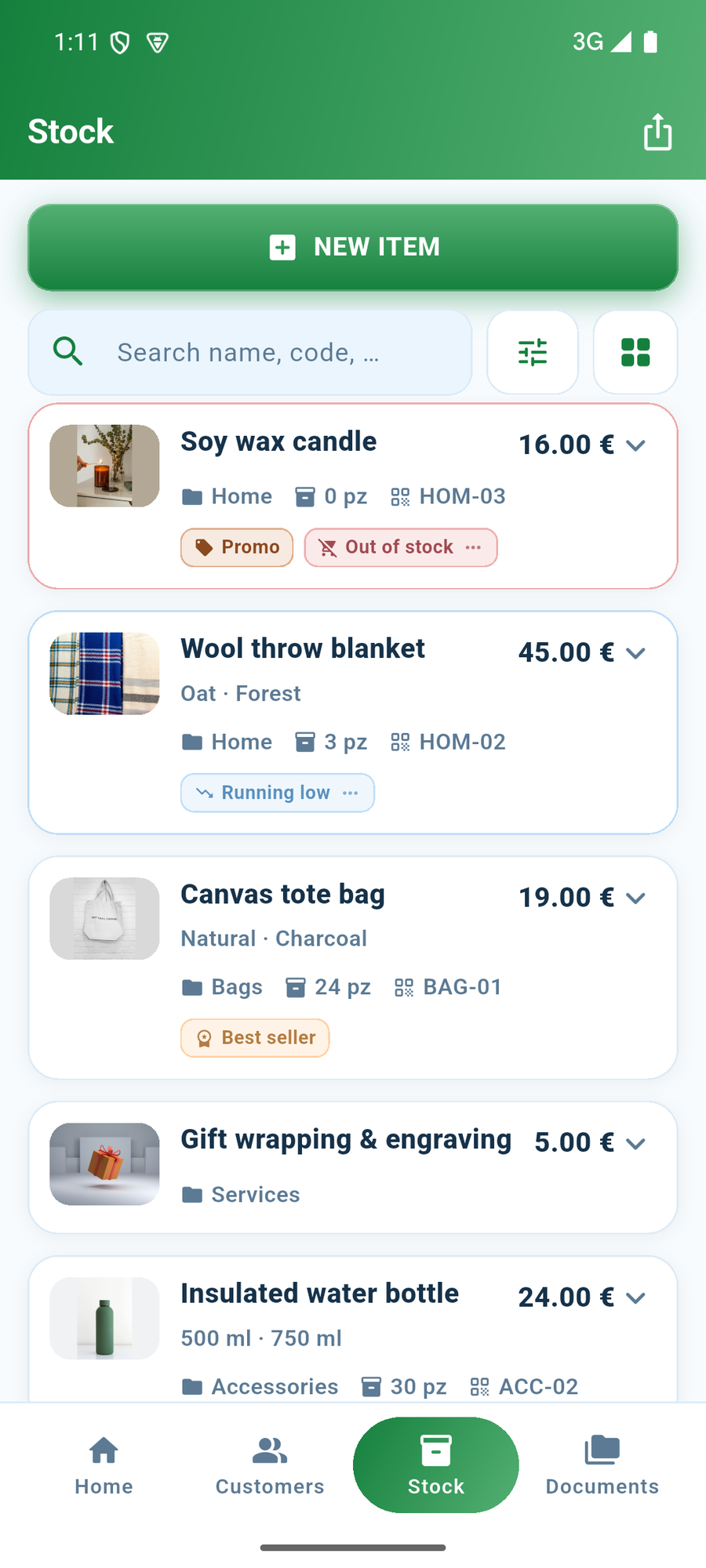
The Stock button at the bottom opens the list of what you sell.
Each row shows the name, the price, and — if you count units — how many there are. A tap opens the card with everything else.
The stock list.
Searching and filtering
The field at the top searches as you type: in the name, the code, the description. The filters next to it narrow by category, by label and by availability.
When a filter is on it stays visible: so you never end up searching for an item that is there and not finding it because a filter you turned on three days ago was still active.
Low-stock items
The buttons on an open item. The pencil opens the card.
If you count units, the ones below the threshold change colour. Tap them and you can restock or clear the warning without leaving the list.
What it does not do
You do not have to fill it in. You can write items straight into a document, by hand, without saving them to stock. Stock is worth using for what you sell often.
Pro
Variants
One item, several versions: `S · M · L`, `Natural · Charcoal`, `45 Watt · 60 Watt`. Each with its own units in stock.
They exist so you do not have to multiply items. A T-shirt in five sizes and two colours would be ten separate items to keep updated one by one: with variants it is a single item, with a single price.
How to add them
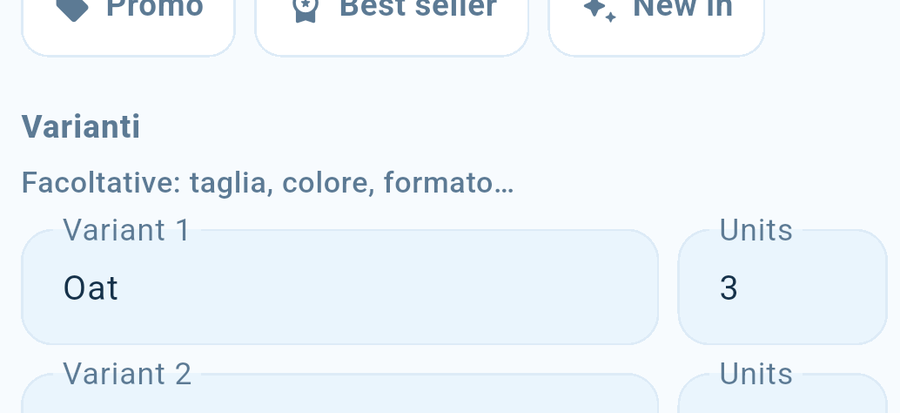
In the item's card, the Variants section: one per row. If you have turned on Deduct units sold, a field for how many you have of that one appears next to each row.
You can have up to ten variants per item.
The variant rows: name on the left, units on the right.
When you sell
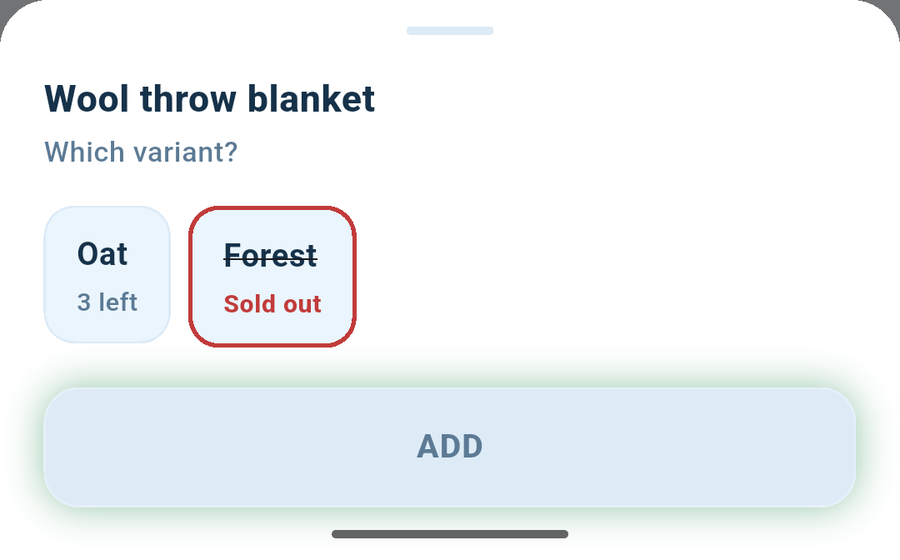
When you add an item that has variants to a document, the app asks you which one and how many:
Each variant shows how many units are left.
The ones that are out are struck through and red, marked Sold out.
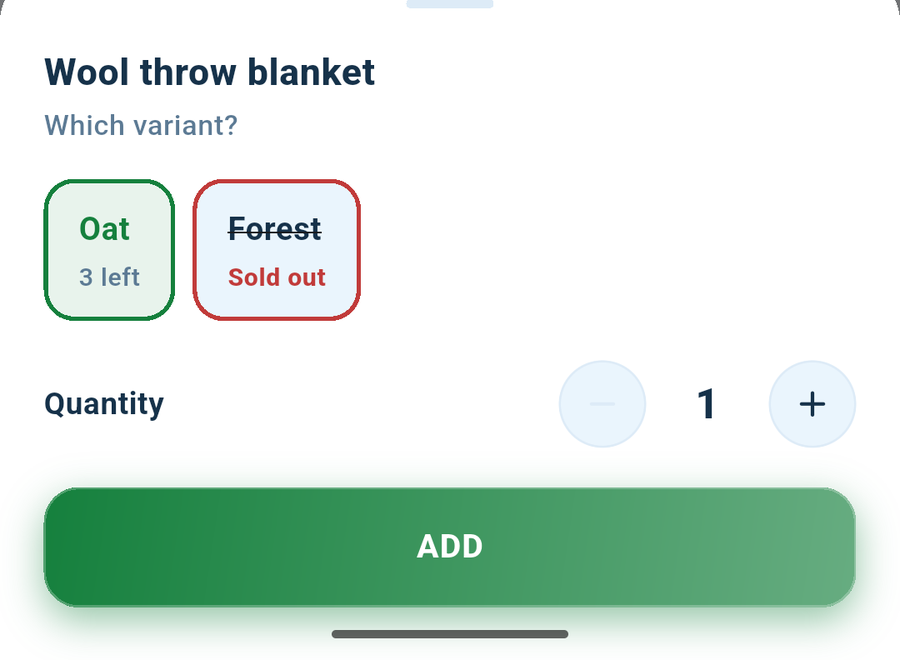
You pick the variant, set the quantity, and it goes into the document.
The sheet the customer receives shows only the variant sold, not all of them: someone who buys a size M reads "M".
Variants that are out are struck through and red.Once the variant is chosen, you set the quantity.
Stock is deducted from the right one
When you save the document, units come off the variant you chose. This is the whole reason variants exist: "I'm out of M but I still have plenty of S" is a sentence a warehouse counted per item cannot say, and anyone looking at a total of twelve units ends up promising a size that is not there.
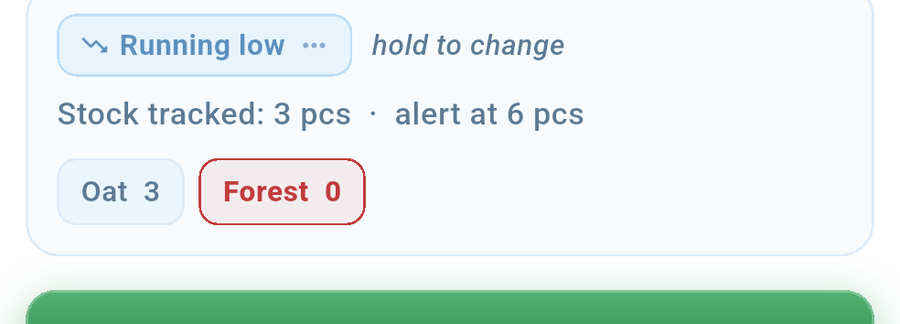
In stock, units show up variant by variant.
Blocking at zero applies per variant
If you have turned on Do not let me sell it when it is at zero for the item, a variant that is out can no longer be added to a document — even if plenty of units remain in other sizes.
If you change M to Medium, the counted units stay where they were: the app knows it is the same variant. The same is true if you reorder the list.
If you only use them to describe
You can leave the units blank: the variants appear on the document as a list of what you offer, and stock stays at the item level, as before. You do not have to count them to use them.
What it does not do
They do not have a different price. The price belongs to the item: if a variant genuinely costs more, that is a separate item.
One variant per row. If you sell two M and one L, that is two rows on the document — and rightly so, because they are two different things.
They cannot be added on the fly. Variants are written into the item's card, not while you are making a document.
A downgrade does not delete them. If you go back to the free plan, items that already had variants keep selling them: only adding new ones is blocked.
Pro
Categories
A category is a group of items: Home, Bags, Gifts.
What you get out of it
You find an item in two taps instead of scrolling through the whole list. With forty items it is convenient; with two hundred it is the only way.
The showcase comes out organised. Categories become the sections of the image you send to the customer, with the headings already in the right place. Without them, it is one long list where the customer gets lost.
Statistics tell you what sells. How much you have sold per category, not just per single item: that is the number that tells you what to push.
If you have few items you can skip them entirely: you add them once the list starts getting long, without redoing anything.
How to manage them
From an item's card, the categories screen opens: from there you create, rename and delete them.
Renaming is safe: items that had it keep it, you do not have to go through them one by one.
What it does not do
An item sits in one category only. If you need a second classification — "on offer", "new" — use labels instead, which can be combined.
A downgrade does not delete them. Categories you have already created stay, and items keep them: only creating, renaming or deleting is blocked while you are on the free plan.
Stock levels
Counting units is optional. Plenty of shops do not need it: if you sell services, or if the goods are right in front of you.
If you want it, the item's card has four controls.
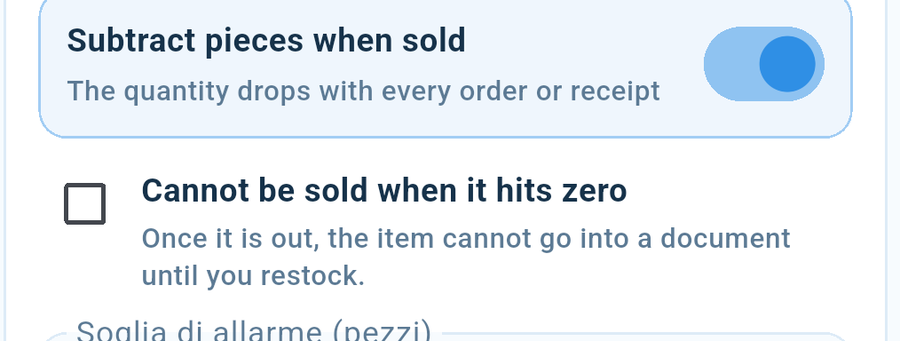
Scale sold units is the switch that turns everything on: once it is on, every document you make takes units off the stock count.
Units in stock is how many you have right now.
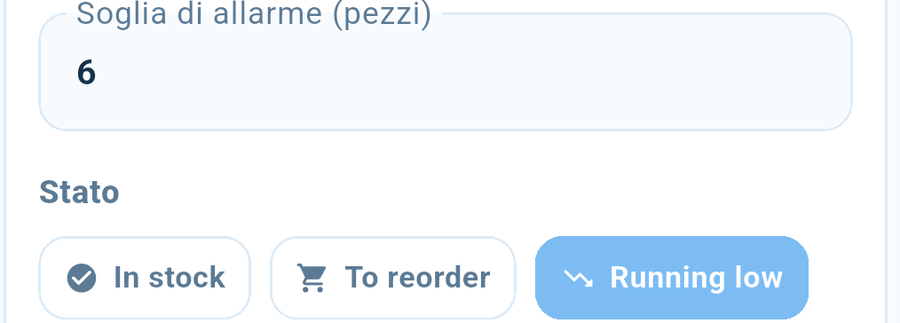
Alert threshold (units) is the number below which the item becomes "low stock".
Do not sell when at zero is the checkbox that stops you selling it once it has run out.
The switch that turns on counting, and the total that comes from variants.
The stock alert
When an item drops below the threshold, it changes colour in the stock list and appears on Home, among the things waiting for you. You do not have to go looking for it: it is right there the first time you open the app.
From there you restock it or turn off the alert: see Restocking.
The checkbox for blocking, and the alert threshold.
Setting the status by hand. You can write "out of stock" or "to order" even if you still have units: it is your own note, and it wins over the colour of the label.
Blocking at zero
There is an extra checkbox: do not let me sell it when it is at zero. It is for people who will not promise goods they do not have, because backing out in front of a customer costs more than a missed sale.
When it is on, the item cannot be added to a document if there are none left. And the count is on what is left: if you have one and you have already put one in the document, the second will not go in.
What it does not do
It is off by default. Updating the app will not leave you with a warehouse that refuses a sale you never asked it to refuse.
It does not block people who do not count units. If you have not turned stock on for that item, sell as many as you like: the app has no number to tell it they have run out.
"Out of stock" written by hand does not block. The block looks at the number, not the label: if the number says five, there are five.
Restocking
When an item goes below the threshold, the app flags it in the stock list and in Home. You clear the warning from wherever you read it, without opening the card.
Three paths:
I've restocked — enter how many units arrived and stock updates.
Clear the warning — stock stays as it is, but you stop being warned. For what you have already ordered and are waiting on.
Delete the item — you no longer sell it.
What it does not do
It does not order anything from anyone. The app does not talk to your suppliers.
It does not recalculate the threshold. You decide that yourself, in the item's card.
Price and profit
Every item has a selling price and, if you want, a cost price.
The cost serves one purpose only: telling you how much you make. The app shows it next to the price as you type it, so you notice before selling below cost, not at the end of the month.
If you do not work with VAT
The maths is direct: profit = price minus cost. Bought for 6, sold for 10, you make 4. That is the case for most people using the app, and there is nothing else to know.
If you work with VAT
Profit is counted on what actually stays with you, that is, without the tax, which is not yours.
VAT excluded: bought for 6, sold for 10 plus VAT. The customer pays 12, but you hand over the 2 in tax. You make 4.
VAT included: bought for 6, listed at 10 including 22% VAT. What stays with you is 8.20, so you make 2.20 — not 4.
The app does this calculation for you. It is worth knowing because it is what almost everyone gets wrong in their head.
Rounding
Next to the price the app suggests the nearest round figure. It is one tap, and it stops you from ending up with a price list full of numbers like 17.43.
What it does not do
The cost never appears on the document. It is your own figure: not on the sheet, not in the PDF, not in the message.
It does not update the cost on its own. If your supplier raises their price, you change the number yourself.
Pro
The showcase
The showcase turns your catalogue into a single image, ready to send in a chat: photos, names and prices of the items you choose, split by category, with your header at the top.
It is the answer to "what have you got?" — the message that arrives every day and that normally gets answered by typing ten lines by hand.
How to make one
From Stock, at the top, the showcase icon. Choose which items to include — all of them, one category, or a hand-picked selection — and the app builds the image and shows it to you. What you see is what will arrive.
Then you send it in a chat or save it to the gallery to reuse it.
It reaches anyone
An image opens in any chat, on any phone, and stays viewable even without a connection. Whoever receives it does not have to install anything or open any address — and they cannot lose it in the middle of a conversation, because it is a photo that stays in their gallery.
What it does not do
It is not an online shop. Nobody buys from it: it is an illustrated price list, and the order still comes to you as always, in chat.
It does not update itself. If you change a price, a showcase you already sent stays as it was: you make a new one in two taps.
Searching and filtering
Customers, stock and documents all follow the same pattern: a search field at the top, and filters below.
Searching
It searches as you type and looks across several fields at once. In documents it also finds by the name of an item inside it: if you remember what you sold but not to whom, search for that.
Filters stay visible
When a filter is on you can see it, and it turns off with a tap.
If a list looks empty to you, the first thing to check is whether a filter is on: that is the most common reason something that is there cannot be found.
What it does not do
It does not search inside private notes. Those never enter the search.
Quick sale
From Stock, on an item, there is quick sale: it asks only how many units, then the customer, and opens the document already filled in for you to confirm.
Use it when a message comes in, there is only one item, and you already know who it is for. The long way — new document, choose the type, add items, search for the item, go back, choose the customer — is eight taps for the same sale.
What it does not do
It does not skip confirmation. The document opens already filled in, but you are the one who confirms it.
One item at a time. If the sale has two, the normal way is better.
Documents
Creating a document
The big Create & send button in Home, or the one at the top of the archive.
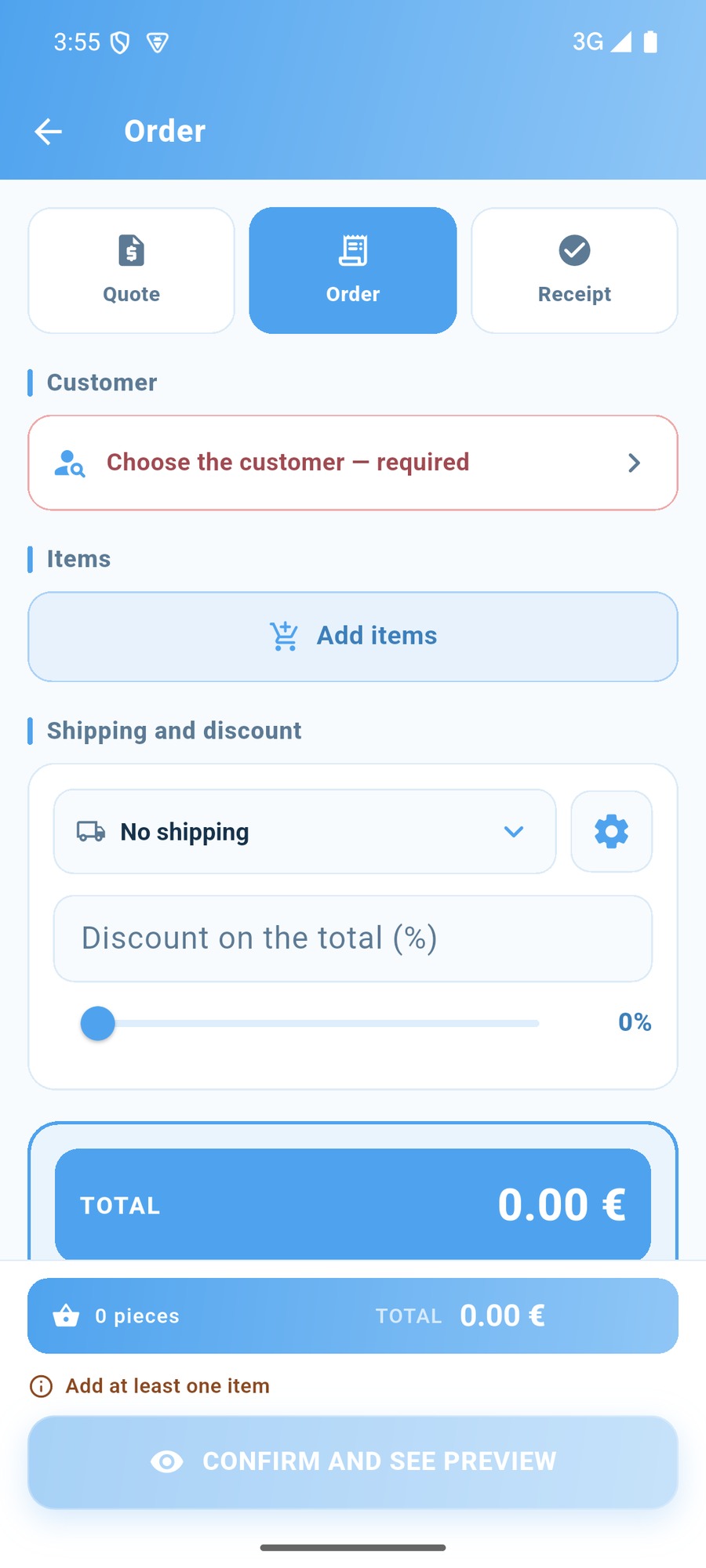
The document creation screen.
The screen follows the order you naturally think in:
1. The customer — pick from the list or create one on the fly. 2. The items — from stock, or typed by hand if it is a one-off. 3. Shipping, if there is any. 4. The total, which updates as you work.
Below are the Document details — type, status, numbers — and the notes. They sit further down because in most cases they are fine as they are.
Items typed by hand
Not everything is in stock: a repair, a made-to-order job, a refund. You can type the name, price and quantity straight into the document, without saving anything.
What it does not do
It does not save as you type. The document enters the archive when you press Save in the preview. Until then you can change your mind without leaving a trace.
Quote, order, receipt
YATAIO makes three types of document, and they are three different moments of the same sale.
Quote — "here's what it would cost". It does not commit anyone, and it has an expiry date.
Order — "agreed, I'll do it". The sale is on, the goods have not been delivered or paid for yet.
Receipt — "it's done". It records what you delivered and were paid for.
You do not have to go through all three: you can start straight from a receipt if the sale is immediate.
Each has its own colour
They are recognisable at a glance, in the archive and on the sheet the customer receives:
Quote: purple.
Order: light blue.
Receipt: green.
The colour is on the band at the top of the document, on the capsule with the abbreviation (QUO, ORD, REC) and on the total box. After two days you tell them apart without reading anything.
What it does not do
A receipt is not an invoice. It is a commercial document that records the sale, not a tax document with compliant numbering.
Discounts
There are two discounts, and they do different things.
The line discount sits on a single item: -10% on twenty pillowcases. On the sheet it shows up next to that line.
The total discount applies at the end, to the whole document, and appears as its own line in the summary.
They can be used together: line discounts are applied first, then the total discount is applied to the result.
What it does not do
There are no automatic discounts. No rules like "5% from the tenth unit": you decide the discount yourself, document by document.
Shipping
In the document, below the items, there is the shipping line: a name and a cost.
How to add it
In the open document, below the item list, tap Shipping. Write what it is called — "Express courier", "Home delivery" — and how much it costs.
Methods are saved
The ones you use often stay in a list: next time you pick them with a tap instead of typing them again. Tapping a saved method lets you change its cost just for that document, without changing the original.
How to remove or change it
Tap the shipping line again: from there you change the name and cost, or remove it entirely.
In the total
Shipping goes in as its own line, below the items: it stays clear what is goods and what is transport.
What it does not do
It does not calculate anything based on weight or distance, and it does not talk to any courier. It is a cost line you write yourself.
VAT
VAT is a choice for your business, not for the single document, and you set it once in your shop details.
Three options:
VAT included — the prices you write already contain the tax: what you write is what the customer pays.
VAT excluded — prices are taxable amounts and the tax is added at the end. In stock, next to the price, +VAT appears as a reminder.
No VAT — the app calculates no tax and does not write any on documents. This is for people who are not required to charge VAT, and also for people who simply do not want to deal with it here: the prices are whatever you write, full stop.
How the breakdown works, if you care
From a price of 10 with 22% VAT, the tax is not 2.20: you divide by 1.22, which gives 8.20 of goods and 1.80 of tax.
The app groups by rate and calculates once on the total for each, instead of line by line: it is the only way for the lines to add up to the total written at the bottom.
What it does not do
It does not decide the rate for you. You set that on the item, and if you do not set it, it uses your country's default.
A document's status
Every document has a status, and the possible statuses depend on the type: what can happen to a quote is not what can happen to a receipt.
Order — in progress, awaiting stock, ready to ship, shipped, unpaid, paid.
Receipt — issued, unpaid, paid.
How to change it
In the open document, tap the status capsule: it opens in a single row with the alternatives, and closes again as soon as you pick one.
Status decides what ends up in Home
"Unpaid" puts the document among what is outstanding; "awaiting stock" puts it among the things waiting for you.
What it does not do
It does not change on its own, with one exception: a quote past its expiry date shows as expired.
It does not notify the customer. Marking it "shipped" sends no notification: you tell them yourself.
Urgent documents
The problem. You send a quote, the customer says "I'll let you know", and two weeks later it is out of your head. That quote was a sale.
Marking a document urgent keeps it at the top of the Home screen until you remove it. It is not a notification and it does not make a sound: it is a short list you see every time you open the app.
How to set it. Open the document in the archive and tap the alarm clock. You can do it on any document, at any time.
How to remove it. Tap the crossed-out alarm, from Home or from the archive. If you do it by mistake, an Undo appears for a few seconds.
A document also leaves the list on its own when it stops making sense: a quote that has been accepted or has expired is not waiting for you any more.
What it does not do
It does not send anything to the customer. Urgency is your reminder, not a chaser: the customer never sees it, not on the document and not in the message.
It does not expire by itself after a while. It stays until you remove it, or until the document changes status.
Notes on a document
A document can have two notes, and the whole difference is this:
The note on the document is read by the customer. It appears on the sheet, in the PDF and in the image: "delivery in ten days", "quantity discount already applied", "thanks for your business".
The private note never goes out. It is not on the sheet, not in the PDF, not in the image, not in the message: "if they haggle again, do not go below 18 a unit", "settle up by the end of the week".
On screen the private note is marked with a padlock and the label never appears in any share. It is not a promise on trust: it is literally outside the area that gets captured for the image and the PDF.
What it does not do
The private note is not password protected. Anyone holding your unlocked phone can read it. It is private from the customer, not from the world.
From quote to order to receipt
When a quote is accepted you do not rewrite it: you transform it. From the open document, the button that suggests the next step — quote to order, order to receipt.
The new document is created with the same customer and the same items, and opens already ready to send: transforming a quote into an order is done to send the order, not to file it away.
The chain stays
The new document remembers where it came from, and in the archive the two stay linked. Six months from now, looking at the receipt, you can see which quote it grew out of.
The old one locks
A quote that has already become an order can no longer be edited. In place of the pencil you find the duplicate button: if you need a different version, you make a new one.
What it does not do
It does not delete the starting document. Both stay, and rightly so: they record two different moments.
Duplicating a document
Redo the same document for another customer, or for the same customer a month later, without rewriting it.
How to do it
1. Go to Documents and tap the document to redo: the card opens. 2. At the bottom of the card, to the right of the Copy text and Share buttons, there is the icon with two stacked sheets. 3. Tap it: the app creates a new document with the same items, the same quantities and the same prices, and asks you for whom. 4. Choose the customer — the same one or a different one — and the document opens already filled in. Change whatever you want, and save.
If the document has already been transformed into another one, in place of the pencil you find that same two-sheets icon: that is how you make a different version without touching the original.
The duplicate is a new document
New date, new number, starting status. What it copies is the customer, the items, the quantities and the prices.
What it does not do
It does not copy private notes. A reminder written for a sale from three months ago is almost never right for today's.
Sending a document
After saving, or from the archive with the Share button, the preview opens: the sheet as the customer will see it on top, the ways to send it below.
Text — the document written out in full, already copied and ready to paste into any chat. You do not have to select anything: you tap, open the conversation and paste.
Image — the sheet as a photograph. Send it in a chat, save it to the gallery, print it from another app, or forward it to someone else.
PDF — the actual document. Send it in a chat or by email, archive it, open it on a computer: it is the format everyone can read and no one can accidentally change.
Email — appears only if the customer has an address: it opens your mail app with the document already attached.
Save — opens the system print dialog, from which you can actually print or save the PDF wherever you want.
QR — on orders and receipts. It is the code with this document's total already loaded into it: the customer scans it and pays, without typing any figures.
The message that goes with it
Above the buttons you can add a ready-made phrase, which goes out together with the document and fills itself in with the customer's name and the document's details. See Ready-made phrases.
What it does not do
YATAIO does not send anything on your behalf. It prepares the message and hands it to the app you choose: you are the one who presses send, and you decide who to.
Pro
Documents without our branding
In the free plan every document carries three things of ours: a diagonal watermark behind the sheet, an advertising line that changes from one document to the next, and a small line at the bottom saying it was made with YATAIO.
With the PRO plan the first two go away. The watermark and the advertising line disappear; the line at the bottom stays, small and grey. The sheet you send speaks about your business — your logo at the top and your details — and nothing gets in front of it any more.
Put plainly, because this is the part that matters: PRO makes the document clean, not anonymous.
The invite code is a different thing
If you have an invite code you can choose to put a line at the bottom back yourself, in exchange for earning months of PRO. It is off by default, and you switch it on: see Invite and earn.
What it does not do
It does not remove your logo. That stays: it is yours.
It does not remove our name entirely. The line at the bottom is there with PRO too. What goes away is the watermark and the advertising — everything you notice from across the room.
Pro
Documents with your identity
Your documents become truly yours.
Your logo at the top, your colours on the header, on the totals and on every detail of the sheet. Whoever receives your quote does not see a document made with an app: they see a document from your business.
Why it matters more than it seems
The document is often the only thing in writing that the customer keeps of you. It stays in their chat, they forward it to a colleague, they find it again six months later. A generic sheet gets forgotten; a sheet in your colours makes them remember you.
And in front of a new customer it makes the difference between looking like someone who just started out on their own and looking like an established business — everything else being equal.
How to do it
In your business details, choose the colour, and upload the logo. From that moment every new document comes out this way: on screen, as an image and as a PDF.
What it does not do
It does not change documents already sent. Those stay as they were.
Pro
Ready-made phrases
The phrases you type every day, saved once and filled in by the app with the right details.
An example. You save this:
Hi {customer}, here is the {document} no. {number} for a total of {total}. Let me know if you need anything!
And when you pick it on a receipt, what goes out is:
Hi Elena Conti, here is the receipt no. REC-2026-0001 for a total of $45.00. Let me know if you need anything!
Placeholders
The parts inside curly braces are placeholders: gaps the app fills in on its own from the document you are sending. You write the phrase once with the gaps inside; every time you use it, the gaps fill in with the real details.
You put the customer's name in there, the document's type and number, the total, the expiry date. You never rewrite anything, and you never get a name wrong.
Other phrases worth having ready
The quote: "Hi {customer}, here is quote no. {number}. It is valid until {expiry}, let me know what you think!"
The gentle reminder: "Hi {customer}, just a reminder about document {number} for {total}, still unpaid. Thanks!"
How to pay: "You can pay by scanning the QR code I sent you, or by bank transfer. Let me know once it's done."
Shipping: "{customer}, your order {number} went out today."
The phrase goes out together with the document
When you send a document, the phrase you pick gets pasted in together with the sheet, the image or the PDF: one message, already ready, with the document attached. You do not have to write the text first and then go looking for the file.
The name is always the right one
A phrase copied from your clipboard sooner or later arrives with the previous customer's name still in it. With placeholders that never happens: the app puts in the name from the document in front of you.
What it does not do
They do not send anything on their own. They prepare the message, then you send it.
The document archive
The Documents button at the bottom opens everything you have made, most recent first.
Searching
The field at the top searches the document number, the customer's name, and the names of the items inside it. If you remember what you sold but not to whom, search for that.
Filtering
Below the search field are the three types — quote, order, receipt — which turn on with a tap. The button next to them opens the other filters: status, period, and more.
Cards open in place
A tap on a document opens it right where it is: you see the items, the total, the notes, and the buttons to copy it, share it, edit it or duplicate it. You do not change screen, so you never lose your place in the list.
What it does not do
It does not delete anything on its own. The archive only grows: a document from two years ago is still there.
The preview before sending
Before a document goes out, the app shows it to you exactly as the customer will see it: the whole sheet, with your logo at the top, their details, the items, the totals and the notes.
It is not a summary and not an approximation. What you see on screen is the same image that ends up in the chat and in the PDF.
What it is for
Rereading. A wrong price or one item too many shows up here, in three seconds, and gets fixed by going back. After the document has gone out, it gets fixed with a phone call.
What you find on this screen
The sheet, scrollable in full.
The private note, if there is one, in its own box with a padlock: you see it and it never ends up in any of the shares.
The message that goes with it, to add to the message.
The ways to send it: text, image, PDF, email, print, QR code. See Sending a document.
Save document, at the bottom: this is the moment the document enters the archive. Before that tap, it does not exist yet.
Save and mark paid
If the document is unpaid but the customer has already paid, Save and mark paid appears at the bottom: it saves it and marks it paid in one go.
From the archive
Opening the preview of a document already saved, you find Done at the bottom instead of Save: that document is already in the archive, and there is nothing left to save.
Getting paid
Pro
The payment QR code
The customer scans it, sees your name and the amount already written in, and confirms. You get paid. No numbers to dictate, no figures to copy out, no "wait, which account number did you say?".
It is the feature that saves the most time of all, and the one that loses you the least money.
The QR code ready to send, with the amount written into it.
What it gets out of the way
Transcription errors. An account number is a long string of characters. Anyone copying it by hand from a message gets it wrong sometimes, and when they do, the transfer bounces back days later — or worse, it does not come back at all. With the QR code nothing gets copied: the details go into the banking app exactly as you wrote them.
The wrong amount. A document's QR code carries the total already calculated inside it. The customer does not type any figures, so they cannot leave one out or add an extra one.
The questions. "How do I pay you?" is the message you get most often. With the QR code the answer is an image, sent once.
The payment happens between their bank and yours
This is the part worth understanding, because it is what protects you.
The money never passes through us, and not through any third-party service either: the QR code tells the customer's banking app where to send it, and from there on it is an ordinary bank transfer, with all the usual guarantees. There is no intermediate account where it can get stuck, no fee eating into it, no waiting because "the credit is being processed".
Payment scams, and what to do about them
How the scam works. Anyone selling in chat eventually dictates their account details in a conversation. A scammer who manages to insert themselves — a cloned profile, a group where anyone can post, a forwarded and edited message — sends the customer their own details instead of yours. The customer pays and is convinced they paid you. You find out days later, and the money belongs to someone else.
What the QR code gets out of the way. The customer does not copy anything and does not type figures, so they cannot get it wrong. But the real defence is something else: their bank shows them the recipient's name before they confirm.
⚠️ A QR code does not prove who sent it. Even a scammer can generate one — it will just be their own. What they cannot do is make your name show up on the customer's phone when they go to confirm.
What to tell the customer. Say it once, and it is worth saving as a ready-made phrase:
Before confirming, check that your bank shows the name [the name on your account]. If it shows a different one, stop and message me.
What you should do:
Send the QR code in the usual conversation, not in reply to a new contact claiming to be an old customer.
Check your own account, not the app. YATAIO does not know whether you have been paid: marking something "paid" here is a reminder for you, not proof the money has arrived.
If a customer says they have paid and you see nothing, ask them what name their bank showed them. That is where the scam shows itself.
Where to find it
Get paid, the orange button in Home: the QR code for your account, with no amount. The one to show someone who owes you money.
In the preview of an order or a receipt: the QR code with that document's total inside it, ready to send along with the document itself.
If the QR code does not appear
It is almost always because your bank details are missing from your business details.
What it does not do
The app does not know whether you have been paid. Nothing tells it the transfer has arrived: you are the one who marks the document as paid.
Marking a payment as received
A document marked "unpaid" stays among the outstanding items in Home and in the customer's open balance until you mark it paid.
You can do it from three places: from the document's card in the archive, from the list of outstanding items in Home, and from the preview when you send it — if the customer has already paid, Save and mark paid does both at once.
What it does not do
It does not record how you were paid. Cash, bank transfer, QR code: to the app it is simply paid. If you need to know which, write it in the private note.
It does not handle part-payments. A document is either paid or it is not.
The numbers
Pro
Statistics
Knowing how much you are really making, not how much you are taking in. They are two different numbers, and the gap between them is what actually stays in your pocket.
Choose the period — today, this week, this month, this year, or any two dates — and every number rebuilds itself from that.
What it tells you
The money
Revenue for the period, and gross revenue if you work with VAT.
VAT owed, already split by rate.
Profit — revenue minus what the goods cost you.
What you have actually been paid, which is not the same as what you have sold.
What you are still owed: how many documents and for how much.
The work
How many documents you made, split by type.
How many sales and how many units went out.
Quotes sent and quotes accepted — the ratio between the two is the number that tells you whether your prices are too high or too low, and it is the only way to find out without guessing.
Who and what
Best-selling items, ranked, with what they brought in.
Top-spending customers, ranked, with how much they have spent.
Profit, and how reliable it is
Profit is calculated on the items you have set a cost price for. If you have set few, the number is partial — and the app tells you so, instead of handing you a figure that looks trustworthy when it is not. The more costs you set, the closer that number gets to your real margin.
The numbers come from your documents
No estimates and no projections. If a payment never became a document, it is not in the statistics — which is why it is worth making a receipt even for small sales.
What it does not do
It does not send anything to anyone. These numbers stay on your phone: we do not see them, and neither does anyone else.
Pro
Exporting your data
All your documents in a spreadsheet, in two taps. From there you open them, filter them, total them and send them to whoever you want.
The file comes out as XLSX, the format Excel, LibreOffice, Numbers and Google Sheets all open with no conversion and no lost columns.
What it contains
One row per document, with:
number, date and type of document;
customer;
taxable amount and tax, split by rate — in separate columns, not bundled into one total you have to unpick by hand;
total;
payment status.
Figures come out as real numbers, not text: you can sum them, sort them and drop a pivot table on top of them without having to convert them one by one.
The period is the one you were looking at
The export starts from statistics and takes the same period you have in front of you. What you just read on screen is exactly what you find in the file.
Where it goes
Send it by email, in a chat, or save it wherever you want. The file is yours and never passes through any server of ours.
What it does not do
It does not process anything. It is a faithful extract of your documents: the calculations are yours to make, or whoever needs to make them, with whatever tool they prefer.
The app
Pro
Backup
Your work, safe from a phone that breaks.
Your data lives on your phone: that is what makes it yours, and it is also what makes it vanish if the phone is lost, breaks, or gets stolen. Backup is the answer, and with the PRO plan you never have to remember to do it.
Automatic backup
Turn it on from Settings → Backup, and that is it. From that moment the app makes a copy on its own, quietly, without asking anything and without making you wait. If one fails, it tries again next time.
When: when you close the app and when you come back to it, so in practice every time you stop working. There is no schedule to set and nothing to press.
How many copies stay: the most recent ones, on rotation. Old ones delete themselves, so they do not fill up your phone — but you are never left with just one copy, which is the situation where a bad backup overwriting a good one leaves you with nothing at all.
What is inside
Everything: customers, items, documents, photos, settings and logo. A single file, which you can keep wherever you want — on the phone, in a chat with yourself, on a cloud service, on a computer.
It is protected by a password you choose
Inside it are your customers' details, your purchase prices and every document. That file will end up in a chat or on a cloud service at some point: the password means whoever gets their hands on it cannot read any of it.
⚠️ The password cannot be recovered
Nobody can recover it, us included. Write it down somewhere: a backup with a lost password is a file that will never open again, and there is nothing we can do about it.
What it does not do
It does not send the data to us. The app produces the file and it stays wherever you put it.
Language
From Home, the shop icon and then the gear icon: Settings. From there you can change the app's language at any time.
It changes both the app and your documents: if you work in English but sell to a customer in Vietnam, the sheet they receive is in whatever language you have set.
The language changes immediately, without pressing "save": as soon as you pick it, the app is already in that language.
Country and currency
These are chosen the first time you open the app, and it is worth taking your time over them: they decide the format of dates and numbers, the type of payment QR code, and the currency of all your documents.
What it does not do
It does not translate what you have written yourself. Item names, descriptions and notes stay in the language you wrote them in: what changes is the app around them.
The PRO plan
The free plan does documents, customers and stock with no limit on numbers and no expiry. It is not a trial: it is the app, and for many people it is enough as it is.
The PRO plan adds the things that save time and make your business look bigger than it is:
The payment QR code — the customer scans it and pays, without you dictating any account details.
Statistics — how much you are really making, what sells most, who buys the most.
The showcase — your catalogue in a single image to send in chat.
Ready-made phrases — the messages you type every day, filled in by the app with the right details.
Automatic backup — your work kept safe without thinking about it.
Export — every document in a spreadsheet.
Documents with no watermark and no advertising, and with your own colours - all that is left at the bottom is a small line with our name.
You find them listed in Settings → Version — from Home, the shop icon and then the gear icon — with a mark next to the ones you already have.
How to activate it
After purchase you get an order code. In Settings → Version, tap I have bought the subscription, enter it, and the app unlocks.
If the payment has only just gone through it can take a few minutes to register: in that case the app tells you, and you just try again.
It works without a connection too
Once activated, the app keeps working even if you go weeks without a network: it is not a subscription that switches off the moment the signal drops.
What it does not do
It does not ask for an account. No email, no password: there is only the order code.
It does not lock your data if it expires. The app goes back to free, and customers, items and documents all stay right where they are.
Invite and earn months
If you have the annual subscription you have a six-character invite code. Anyone who uses it to subscribe gets a free month, and you get a month too, with no limit: ten people who sign up is ten months.
The code and the months you have earned are in Settings → Invite and earn.
The code is made to be read out loud
Six characters, without the letters and numbers that get confused when spoken — no O and zero, no I and one, no S and five. It is built to be dictated over the phone in a noisy place.
Putting it on your documents
There is a switch, off by default, that adds a small line to the bottom of your documents with your code. You turn it on yourself if you want to: anyone who paid to get our branding off their sheets does not find it back under another name without having asked for it.
If you received a code
Enter it when you activate your subscription: it only counts once, at first activation.
What it does not do
The server keeps the count, not the app. The app cannot generate codes or add months to itself.
Months are not lost if you cancel. The ones you have earned stay until they run out: a free month that vanishes the moment you stop paying was never really free.
Anonymous data
There is a switch, in Settings, that lets us know which features get used and which do not. Nothing else.
It serves one purpose only: helping us understand where the app works well and where it does not, so we can improve it. If we find out that nobody opens a feature, that is our problem — either it is badly built or it is hidden — and we can fix it. Without those numbers we are just guessing.
What never goes out
Customer names, items, prices, amounts, documents, photos, contacts: never, whether the switch is on or off.
Your data never ends up on any server, ours or anyone else's. It stays on your phone, where it has always been.
It is not advertising
We do not sell data and there are no advertisers: there is nobody to sell it to, and it is not a model that interests us.
You can turn it off
Any time, and the app works exactly the same. If you turn it off you lose nothing, and we do not ask why.
Your data lives on your phone
Customers, items, documents and photos live on your phone, in an archive that is yours. There is no server of ours holding a copy.
Three practical things follow from that.
The app works without a connection. With your data used up, with a patchy signal, on a plane: you can still make documents, and send them once the connection is back.
We do not see your customers. Not because we chose not to look: because we do not have them.
Backup is your responsibility, and it matters. If the phone is lost and you have no backup, the data is lost with it. See Backup.
When the app talks to the network
Only in the version downloaded from our website, and only for one thing: asking whether your subscription is still valid. That request carries the order code, any invite code, and the version number. Nothing else can travel, because nothing else is built to.
The Play Store version does not even have permission to connect: there, the unlock is sold by Google and there is nothing to ask anyone.
What it does not do
It does not sync between two phones. If you need to move data from one to another, that is done with a backup.
Restoring your data
Restoring puts everything that was in the backup back onto the phone: customers, items, documents, photos and settings.
When you need it
New phone. Install the app, restore the backup, and everything is back as it was.
Broken or lost phone. Same thing, on the replacement phone.
You made a mess of something. Deleted half your stock by mistake: go back to yesterday's backup.
How to do it
1. In Settings → Backup, tap Restore. 2. Choose the backup file, from wherever you had put it — the phone, a chat, a cloud service. 3. Enter the password you protected it with. 4. The app puts everything back and restarts on the restored data.
⚠️ Restoring replaces, it does not merge
Whatever is currently on the phone gets replaced by what was in the backup. They do not mix: if you worked after the last backup, that work is gone.
If you are not sure, make a backup of the current state first: that way you have both moments and can choose.
Without the password it will not open
There is no way to recover it, not even for us. That is the price of making sure nobody else can open your data.
What it does not do
It does not merge two phones. It is not a sync: it is a copy that replaces.